21 June 2020 - Sunday - Day 0
What does the hat does the tsc command in TypeScript do? command in TypeScript do?
NODE
Node is a JavaScript runtime environment that can run on different platforms (Mac, Windows, Linux, etc.). What this means is JavaScript (which was originally created to run inside a web browser) can now be run on any computer as a web server.
Node was originally released in 2009 by Ryan Dahl as a response to how slow web servers were at the time. This is because most web servers would block the I/O (Input/Output) task (e.g. reading from the file system or accessing the network) which will lower throughput. Node changed this model by making all I/O tasks non-blocking and asynchronous. Non-blocking, for example, just means a request from another interaction can be processed without waiting for the prior interaction request to finish. This allowed web servers to serve countless requests concurrently.
NON-BLOCKING I/O
Here's an example taken from the main Node website in comparing code between the synchronous blocking state and the asynchronous non-blocking state.
This example covers the use of the Node File System (
fs module) which allows us to work with the file system in our computer.const fs = require("fs");
const data = fs.readFileSync("/file.md");
moreWork();The file system module is included by stating
require('fs'). The readFileSync() method is used to read files on the computer with which we've stated we want to read the markdown file named file.md. The readFileSync() method is synchronous so the moreWork() function will only run after the entire file is read in the process. Since the readFileSync() method blocks moreWork() from running, this is an example of synchronous blocking code.As we've mentioned, Node allows I/O taks to be non-blocking and asynchronous and as a result provides asynchronous forms for all file system operations. Here's an attempt to read the
file.md file and run the moreWork() function in an asynchronous setting:const fs = require("fs");
let data;
fs.readFile("/file.md", (err, res) => { if (err) throw err; data = res;
});
moreWork();The
readFile() method is asynchronous and allows the use of a callback function. The callback function won't run until the former function, readFile(), is complete. In this case, the readFile() method doesn't block code since the moreWork() function will be run while the file is being read. Whenever the reading of the file is complete, the callback function will then run.The ability to have the
moreWork() function run alongside the reading of a file, in the asynchronous example above, was a primary design choice in Node to allow for higher throughput. Callback functions, promises, and the use of the async/await syntax are some of the ways in which Node allows us to conduct and use asynchronous functions.What is Template Literals?
Template literals (Template strings) - JavaScript | MDNHow to run Javascript file with Node?
In our terminal, let's run the javascript code we've written in the
index.js file with the node command. The node command can take an argument for the location of the file in which we'd want the code to run. Since we're already within the tinyhouse_v1/ directory in our terminal, we'll want to run the index.js file within the server folder so we'll specify the following command in our terminal.By running the above command, we can see the two
console.log messages we've prepared!What is a server? How does it works with Node?
A server is software or even hardware that aims to provide functionality for client requests. Large scale applications we use day to day such as Airbnb, Uber, Instagram, and YouTube all have servers that serve data to the respective client apps. Client applications could be running on phones and computers to display this data to users.
Node has a built-in HTTP module that provides the capability to create a server.
Static vs Dynamic Websites - What's the Difference?

Why do we need package.json file?
The package.json file is an important element of the Node ecosystem and is where one can provide metadata about an app, list the packages the app depends on, and create scripts to run, build, or test the app.
A package.json file must contain a name and version field. name and version dictate the name of the application package being built and the version of that particular package respectively.
What is Express?
Express is an incredibly popular framework for Node designed for building servers and APIs.
npm install express
What does Nodemon do?
Nodemon is a tool that will monitor for any changes in our source code and automatically restart our Node server when a change is detected
How to install node dependencies for development only?
use the -D flag which is a shorthand version of --save-dev. This indicates that the package to be installed is a development dependency. Development dependencies are packages that are only needed for local development.
How to start using nodemon?
In Node applications, we're able to define script commands that can be run in an app within a
scripts section of the package.json file. Having scripts helps us avoid repetitively typing long commands manually in the terminal.We'll create a
start script that is responsible in using nodemon to start our Node server:server/package.json
To run our code with Nodemon, all we have to do now is type the
npm run start command in our terminal:server $: npm run startNodemon will output some messages to the console telling us the version of
nodemon being used as well as other messages such as the ability to restart at any time and the location of files being watched.TYPESCRIPT
This is why TypeScript was created. TypeScript is a strongly-typed superset of JavaScript that was introduced in 2012 by Microsoft. It is designed to:
- make code easier to read and understand.
- avoid painful bugs that developers commonly run into when writing JavaScript.
- ultimately save developers time and effort.
t's important to note that TypeScript isn't a completely different language. It's a typed extension of JavaScript.
The key difference between Static vs. Dynamic typing (i.e. JavaScript vs. TypeScript) has to do with when the types of the written program are checked.
In statically-typed languages (TypeScript), types are checked at compile-time (i.e. when the code is being compiled).
In dynamically-typed languages (JavaScript), types are checked at run-time (when the code is being run).
Steps to install TypeScript?
To configure our Node server into a TypeScript project, we'll need to install and use certain TypeScript packages. We'll install the latest versions of the
typescript and ts-node libraries as development dependencies.typescriptis the core Typescript library that will help us compile our TypeScript code to valid JavaScript.
ts-nodeis a utility library that helps us run TypeScript programs in Node.
server $: npm install -D typescript ts-nodeHow to configure TypeSript?
TSCONFIG.JSON
The first thing we'll do to introduce TypeScript into our Node server project is create a TypeScript configuration file (
tsconfig.json). The tsconfig.json file is a JSON file that should be created at the root of a TypeScript project and indicates the parent directory is a TypeScript project. tsconfig.json is where we can customize our TypeScript configuration and guide our TypeScript compiler with options required to compile the project.server / // ... tsconfig.jsonTo customize and edit the options of the TypeScript compiler, we'll specify a
compilerOptions key in our tsconfig.json file.{ "compilerOptions": {}
}There are a large number of options we can dictate and control in our compiler of which all can be seen in the TypeScript handbook. We're not going to go through all the different possible options but instead dictate the ones we'll use for our app.
target
We'll declare the
target option which specifies the target JavaScript version the compiler will output. Here we'll declare a target output of es6 since Node supports a vast majority of ES6 features."target": "es6",module
We'll declare the
module option which refers to the module manager to be used in the compiled JavaScript output. Since CommonJS is the standard in Node, we'll state commonjs as the module option."module": "commonjs",rootDir
To specify the location of files for where we want to declare TypeScript code, we'll use the
rootDir option and give a value of src/ to say we want our compiler to compile the Typescript code in the src/ folder."rootDir": "./src",outDir
We can use the
outDir option to specify where we'd want to output the compiled code when we attempt to compile our entire TypeScript project into JavaScript. We'll dictate that we'll want this output code to be in a folder called build/."outDir": "./build",esModuleInterop
To help compile our CommonJS modules in compliance with ES6 modules, we'll need to introduce the
esModuleInterop option and give it a value of true."esModuleInterop": true,strict
Finally, we'll apply the
strict option which enables a series of strict type checking options such as noImplicitAny, noImplicitThis, strictNullChecks, and so on."strict": trueThe
tsconfig.json file of our server project in its entirety will look like the following:server/tsconfig.json
@TYPES
For us to use third-party libraries (e.g. `express) and have the full power of TypeScript, these libraries should also have dynamic types. Unfortunately, a lot of third party libraries we might want to use can be written in native JavaScript (e.g. express or with an extension of JavaScript (e.g. CoffeeScript).
This is where TypeScript allows for the creation and use of declaration files that describe the shape of existing JavaScript code. In the TypeScript community exists a DefinitelyTyped repository that holds TypeScript declaration files for a large number of packages and is entirely community-driven.
If you ever find yourself using a package that doesn't have a declaration file publicly available, you can contribute to DefinitelyTyped!
Since Express and Node aren't TypeScript libraries, we'll need to install type definitions from TypeScript declaration files for the
express and node packages. We'll install these type definitions as development dependencies.@types/ refers to the TypeScript declaration file packages that come from the DefinitelyTyped Github Repository.server $: npm install -D @types/node @types/expressWith the type definition packages of
node and express installed, we can start to modify our code. First, let's rename our src/index.js file to src/index.ts file. .ts is the file extension used to denote TypeScript files that will be compiled to JavaScript.server/ // ... src/ index.ts // ...In our
index.ts file, we can begin to utilize ES6 import to import the express package. Node doesn't currently support the capability to use the import statement to import modules. This is a great advantage of TypeScript - the capability to use and access ES6 (and newer) features that might not be natively supported in Node (or older browsers).server/src/index.ts
We'll now notice an error in our code. Our IDE Intellisense warns us that the TypeScript compiler will recognize that assigning the string 'two' to the variable
two is incorrect because the variable two was originally defined to be a number.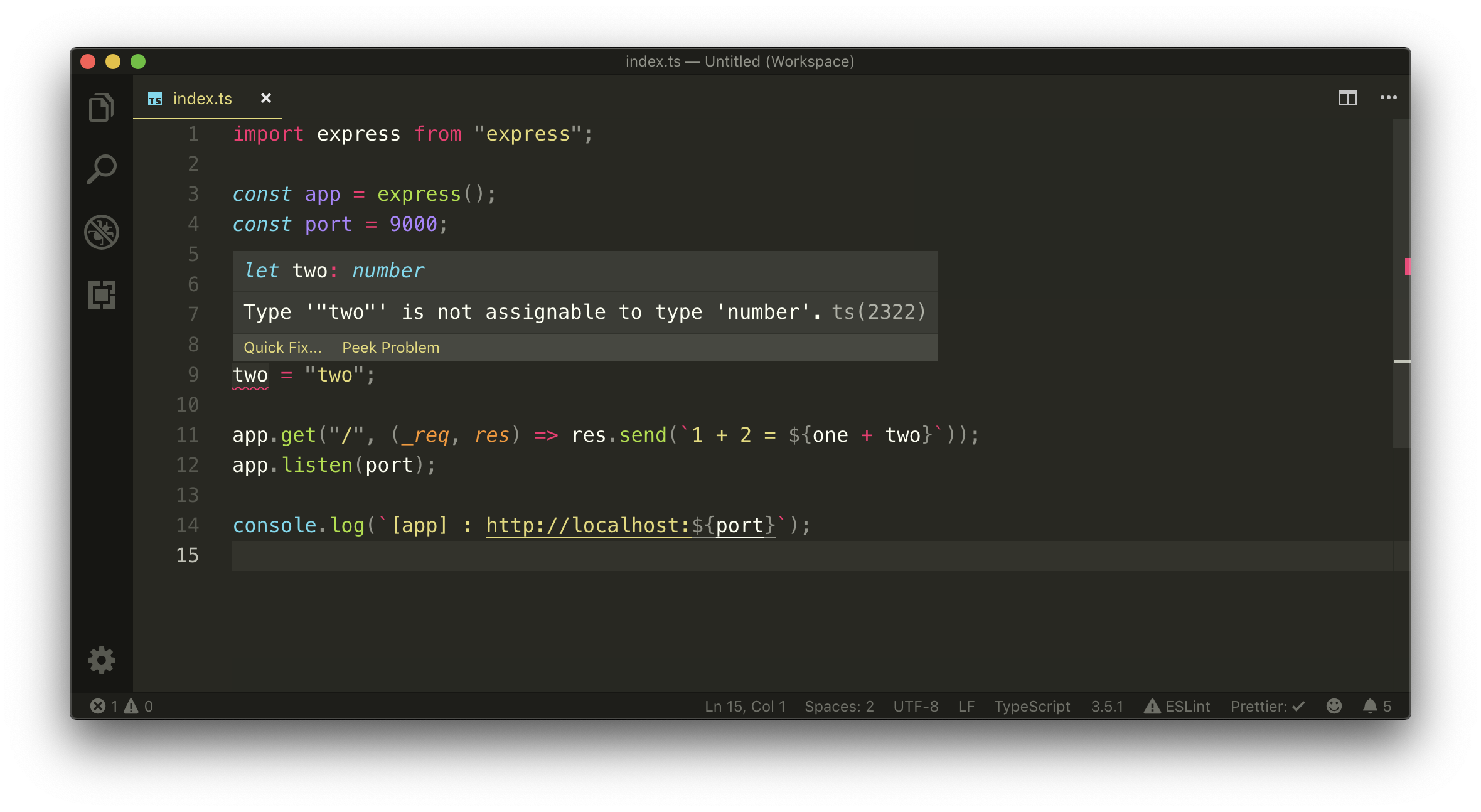
Just from the simple changes we've made, we can already begin to take advantage of Typescript. With that said, let's remove the reassignment of variable
two and keep both constant variables as numbers.const one = 1;
const two = 2;
app.get("/", (_req, res) => res.send(`1 + 2 = ${one + two}`));There are two common ways we can describe the shape of a single listing object. A type alias or an interface.
// Type Aliastype Listing = {};
// Interfaceinterface Listing {}A type alias or an interface can be used with minor differences between them. We'll resort to using an interface since the TypeScript team has historically used interfaces to describe the shape of objects.